Manage Profiles
As an administrator, you can assign a user to a profile to control the actions that the user can perform on an object. You can assign a user to multiple profiles and give the user a greater control over objects. Assign at least one profile to each user. However, you do not need to assign all users to a profile immediately after creating the Mart. When you install Mart, Admin, Architect, Modeler, and Viewer profiles are created.
To add users, follow these steps:
-
Go to Application Menu > Profiles.
The Profiles page appears.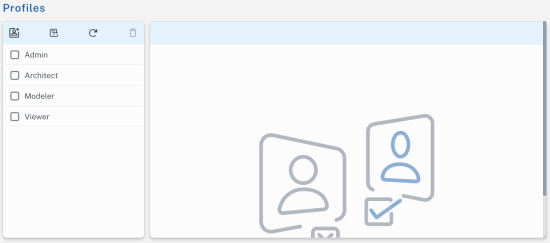
-
Click
 to add a profile.
The Add Profile page appears.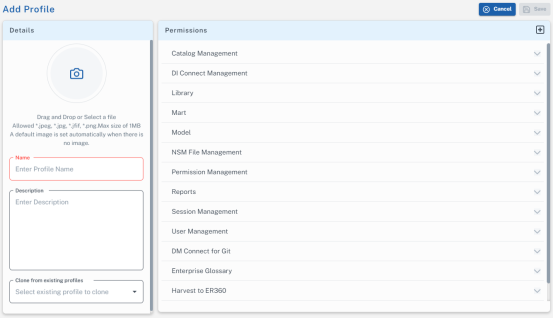
-
Select or enter values to the following fields:
Field
Description
Name
Specifies the name of the profile.
`(backtick), ~(tilde), @(at the rate), %(percentage), ^(carat), ()(brackets), -(hypen), _(underscore), +(plus), =(equal to), |(pipe), {}(flower bracket), [](square bracket), :(colon), ;(semi colon), .(dot) and ,(comma) are allowed.
Description
Specifies the description and purpose of the profile
Clone from existing profiles
If replicating an existing profile, specifies the source profile
Permissions Specifies the permissions that the profile has on each Mart Portal module.
If you have cloned an existing profile, on top of default permissions, you can edit the permissions according to your preferences.
Any dependent permissions for the selected permissions are selected too. For example, if you select the Create Entity permission, then Model Modify, ER Diagram Modify, ER Diagram Modify under Subject Area, and Key Group Create permissions are also selected.
-
Click Save.
To edit a profile, follow these steps:
-
Select the profile and click Edit.
-
Edit the Name, Description, or Permissions.
-
Click Save.
If the objects are part of a model, the changed permissions come to effect when the user opens the model the next time. If the objects are part of the Mart, such as catalog, the changed permissions are effective immediately.
To delete a profile, select a profile and click  .
.
You cannot edit or delete the default profiles.